Is your WordPress website running slow? You’re not alone. Website speed is critical for user experience, SEO, and even conversion rates, but many business owners face the frustrating challenge of slow-loading sites. According to Google, 53% of mobile users abandon sites that take more than 3 seconds to load. Imagine the impact this could have on your site’s performance!
The good news? Speeding up your WordPress website doesn’t require a tech genius. With the right steps, you can significantly improve your site’s speed, reduce bounce rates, and provide a better experience for your visitors. In this guide, we’ll walk you through 5 easy steps to speed up your WordPress website.
By the end of this article, you’ll have the tools and knowledge to make your WordPress website faster, more efficient, and user-friendly. Let’s dive in!
1. Why Is Website Speed Important for Your WordPress Site?
Before jumping into the steps, let’s address why speed matters.
Website speed isn’t just about user convenience—it’s also a ranking factor. Google uses page speed as part of its algorithm, meaning slower websites can hurt your SEO rankings.
Moreover, studies show that a 1-second delay in page load time can result in a 7% loss in conversions. Whether you’re selling products or generating leads, a slow website directly affects your bottom line. This is why optimizing your WordPress website’s speed should be a priority.
2. How to Optimize Your Images for Faster Load Times
Images can be one of the heaviest elements on your WordPress site. If they aren’t properly optimized, they can slow down your site significantly.
How to Fix It:
- Use the Right Image Formats: JPEGs are great for photos, while PNGs are better for images with transparency. WebP is an excellent choice for both quality and file size.
- Compress Images: Use tools like TinyPNG or Smush to reduce image file sizes without sacrificing quality.
- Implement Lazy Loading: Lazy loading ensures that images only load when they are visible on the user’s screen, improving the overall speed of the page.
Pro Tip: Aim to keep the total size of your images under 100 KB for faster load times. If you’re using multiple large images, consider displaying them in smaller resolutions.
3. How to Choose a Quality Hosting Provider
The speed of your WordPress website largely depends on the performance of your hosting provider. Choosing a reliable host can make a significant difference in your website’s speed.
How to Fix It:
- Use Managed WordPress Hosting: Providers like WP Engine or SiteGround specialize in WordPress hosting, optimizing server configurations to handle WordPress sites efficiently.
- Check Server Location: Choose a hosting provider with data centers close to your target audience. This reduces latency and improves load times.
- Consider Cloud Hosting: Cloud hosts like Cloudways offer flexible scalability, ensuring your website can handle sudden traffic spikes without slowdowns.
Real-World Example: A fashion retailer moved from shared hosting to WP Engine’s managed WordPress hosting and saw a 50% decrease in page load time, leading to a 20% increase in conversion rates.
4. How to Implement Caching for Faster Performance
Caching is like a shortcut for your website. It stores frequently accessed data so that your WordPress site doesn’t need to generate new content every time a user visits.
How to Fix It:
- Install a Caching Plugin: Popular plugins like W3 Total Cache or WP Rocket can significantly speed up your site by caching static files.
- Browser Caching: Enable browser caching so returning visitors don’t have to download assets like images, stylesheets, and scripts again.
- Page Caching: This reduces server load by saving a static copy of your page, making it faster for future visitors.
Pro Tip: If your website has frequent updates, like an e-commerce store, make sure to set the cache to refresh automatically to avoid serving outdated content to your users.
5. How to Minimize HTTP Requests and Optimize Your Code
Every time a browser loads a page, it sends HTTP requests for various resources like images, scripts, and CSS files. Too many requests can slow down your site.
How to Fix It:
- Combine and Minify Files: Combine your CSS and JavaScript files into one file each. Use tools like Autoptimize to minify these files, reducing their size and the number of HTTP requests.
- Remove Unused Plugins: Unnecessary plugins can add extra code and slow down your website. Regularly audit and remove plugins that you don’t need.
- Use a Content Delivery Network (CDN): A CDN like Cloudflare distributes your content across global servers, reducing the number of requests to your primary server and speeding up content delivery.
Real-World Example: A small online bookstore reduced their load time by 35% by consolidating CSS and JavaScript files and removing unused plugins.
Conclusion:
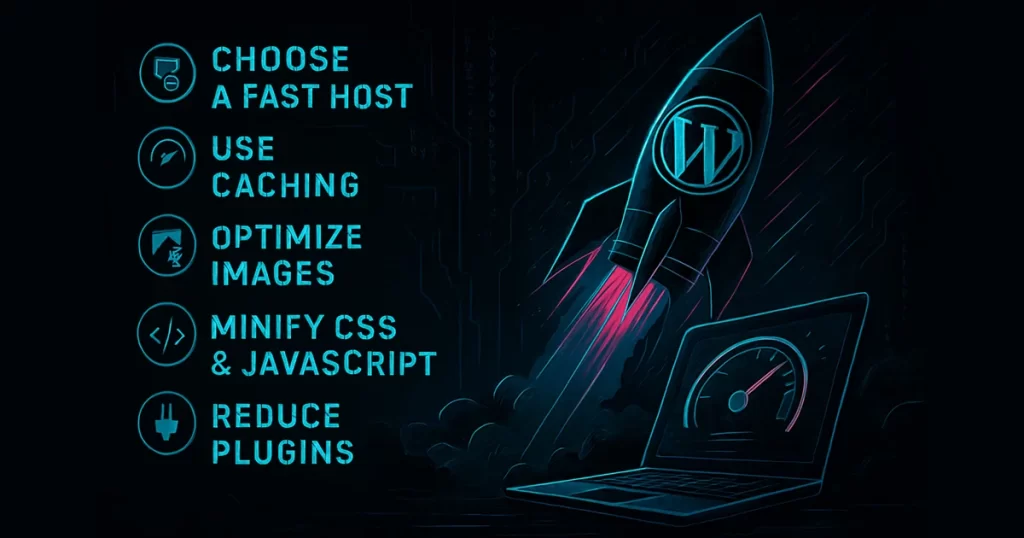
Speeding up your WordPress website doesn’t have to be overwhelming. By following these 5 easy steps—optimizing images, choosing the right hosting, implementing caching, minimizing HTTP requests, and optimizing your code—you can dramatically improve your site’s performance.
Remember, faster websites not only improve user experience but also boost SEO rankings and conversions. If you’re ready to take your website’s performance to the next level, start implementing these strategies today and watch your WordPress site soar.
Want more tips on WordPress optimization? Check out our guide to advanced WordPress SEO for deeper insights into making your site even faster and more efficient.
FAQ:
- How can I check my WordPress website’s speed?
You can use tools like Google PageSpeed Insights, GTMetrix, or Pingdom to analyze your site’s load time and identify areas for improvement. - Should I use a free caching plugin?
While free plugins like W3 Total Cache are effective, premium options like WP Rocket often offer additional features and better ease of use. It’s worth considering for larger sites. - How often should I optimize my website?
It’s a good idea to check your website’s performance every few months. However, after making significant updates (e.g., adding plugins or new content), run a speed test to ensure your site stays fast. - Does using too many plugins slow down my WordPress website?
Yes, each plugin adds additional code and resources. Use only essential plugins, and make sure they are regularly updated. - What is a CDN and how does it help speed up my site?
A Content Delivery Network (CDN) is a network of servers located around the world. It helps serve your website’s content faster by delivering it from the server nearest to the user. - How can I speed up my WordPress website without sacrificing design?
Focus on optimizing your images, minimizing HTTP requests, and implementing caching without changing your website’s overall design. Speed optimization doesn’t mean sacrificing aesthetics! - Is it worth upgrading my hosting plan for better performance?
Yes, upgrading to a managed WordPress hosting plan can significantly improve your website’s speed, especially if your current host isn’t optimized for WordPress.